
Google reviews
How to find your Google review link (and where to use it)
How to find your Google review link in under a minute, make a QR code, test it, and share it on receipts, WhatsApp, a counter stand or NFC cards.
Published
Here's how to find your Google review link. Open your Business Profile on a computer, select Read reviews, then Get more reviews, and select Copy. That's the link that opens your review box for a customer. The same screen gives you a QR code you can save and print. It takes about a minute, and you only need to do it once.
Below are the steps, a quick test so you know the link works, and the places it does the most good. If you want the bigger picture on asking for reviews, our guide to Google reviews in South Africa covers it.
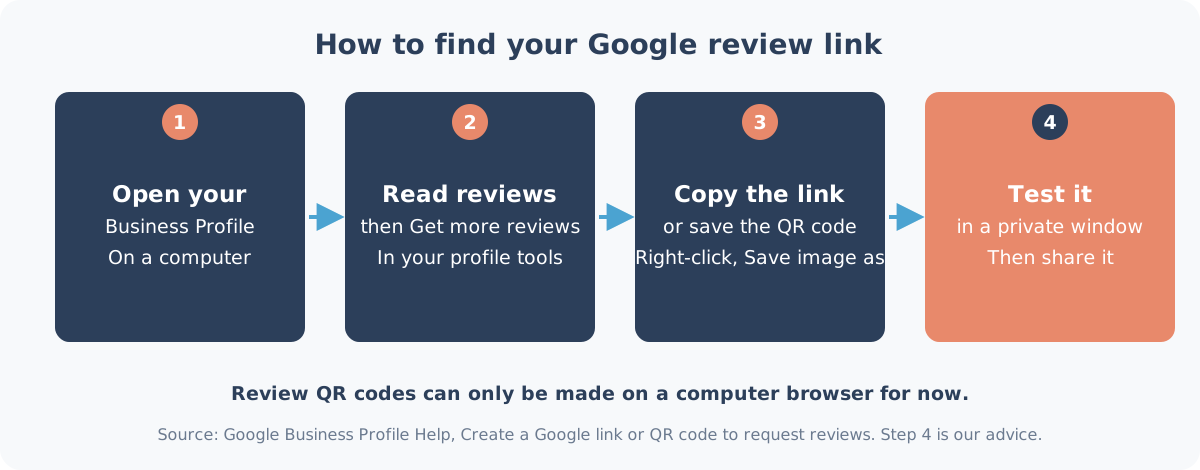
Step 1: open your Business Profile on a computer
Sign in to the Google Account that manages your business, then go to your Business Profile. If you manage more than one business, pick the right one before you carry on, because each profile has its own link.
Use a laptop or desktop for this one. Google says that review QR codes "can only be generated on a computer browser, not on mobile devices" for now.
If your business doesn't show up on Google at all, fix that first. Our post on why a business isn't showing on Google Maps walks through the usual causes.
Step 2: select Read reviews, then Get more reviews
In your profile tools, select Read reviews, then Get more reviews. Google opens a small window with your review link and a QR code.
Step 3: copy the link or save the QR code
- The link: select Copy. Paste it somewhere safe, like a note on your phone or a pinned WhatsApp message to yourself.
- The QR code: right-click it and select Save image as. Keep the file for printing.
Test it before you share it
Open the link in a private or incognito browser window, or send it to a friend. It should open your business with the review box ready. One thing to know: Google says in its tips to get more reviews that customers "must be signed into a Google Account to leave a review", and they can set one up with a non-Gmail email address. So if a friend says it asked them to sign in, that's normal.
If the link doesn't work
Most problems come down to one of these:
- It opens the wrong business. This happens when one account manages a few profiles, or when there's an old duplicate listing. Go back to Step 1 and check the name and address at the top before you copy.
- It opens Google but no review box. Ask the person to sign in to their Google Account and try again. The review box needs an account.
- You can't see Read reviews at all. Your account may not have access to the profile, or the profile may not be verified yet. Ask whoever set it up to add you, or see why a business isn't showing on Google.
- The QR code scans to nothing. Usually it's printed too small or on a shiny surface. Print it bigger, on matt paper, and test it from about an arm's length away.
Once it works, save it in one place everyone in the business can find. A lot of owners end up with three versions of the link floating around WhatsApp groups, and nobody knows which one is right.
How to word the ask
The link is only half of it. The other half is a short, friendly line that goes with it. Keep it plain and the same for every customer. For example (made up, change it to sound like you):
Thanks for coming in today. If you have a minute, we'd love to hear how it went on Google: [your link]
Or, for a trade or delivery business, at the end of the job:
All done, thanks for having us. If you'd like to leave us a Google review, here's the link: [your link]
Notice what isn't in there. No request for top marks, no hint about what to write, and no offer of anything in return. It's just an easy door for people who want to use it.
Where to use your Google review link
Google's own suggestions, from its review link help page, are your receipts, thank-you emails, the end of a chat with a customer, and a printed QR code in your shop. It also says you can send review requests by email, WhatsApp message or a Facebook post.
What works in practice is asking every customer the same way, at the end of the job, and letting them do it when it suits them. A few ideas by kind of business:
- Shops, cafés and salons: a QR code or tap point at the till. Our NFC Google Review Stand has both: the customer taps their phone or scans the code, whenever they're ready. Nobody has to do it on the spot.
- Trades, drivers and mobile staff: a link in the WhatsApp message that confirms the job is done, or an NFC Google Review Card the customer can keep and use later.
- Tables and menus: a small Tap Spot NFC sticker programmed with your link. Stick it where people already have their phones out.
Every one of those products comes programmed with your own review link and tested before it leaves us, so there's nothing to set up on your side.
Link, QR code or tap: which one?
They all open the same page, so pick by where your customer is when the job ends.
The plain link is best when the conversation is already on a screen: a WhatsApp chat, an invoice email, a booking confirmation. The customer just taps it. There's nothing to print.
The QR code suits a physical spot where people stand or sit for a moment, like a till, a reception desk or a waiting area. Customers just point their phone camera at it. The catch is size and light: a code that's too small, or behind a glare, gets ignored.
A tap point (NFC) is the quickest of the three. The customer holds their phone near it and the page opens, with no camera and no typing. It works on iPhones and on Android phones with NFC. Because not every phone has NFC, or has it switched on, a tap point next to a printed QR code covers both, which is why our counter stand has the two together.
Many businesses end up using two: the link in their messages, and a code or tap point where customers pay.
Three rules to keep in mind
Google's review policy is short on this. Don't offer anything in return for a review, not even a discount. Ask everyone, not only the customers you think are happy. And don't pressure people to review while they're still in your business, or tell them what to write.
A link or a stand fits easily inside those rules: it's simply there for anyone who wants to use it. Once the reviews come in, reply to reviews, good and bad. Our Google review reply service can take that off your hands, and it comes with every Heights Care plan.
Want us to set it up for you?
Shaun has 6+ years in local search, and we'll find your link, check it opens the right profile and get it onto a stand, card or sticker for you. WhatsApp Shaun on 075 330 9812 with your business name.